Need to save a card for later?
Create a bookmark folder in your browser of choice (Chrome, Firefox...), and save individual cards in your bookmarks to view here later.

AutoCAD Based Display (Ribbon/Toolbar/Location)
Description:
Changing the characteristics of wipeouts.
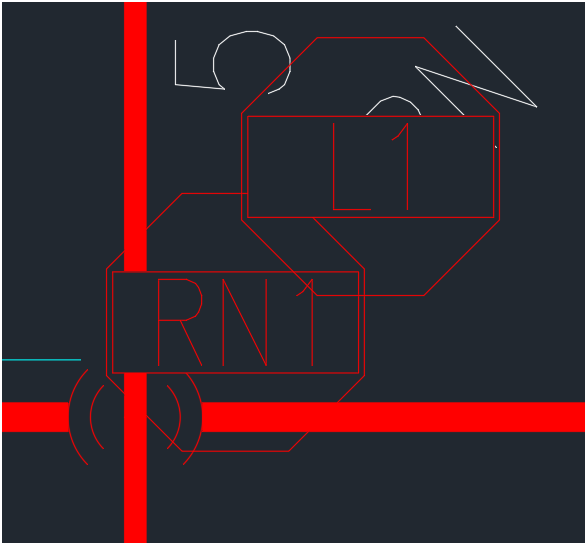
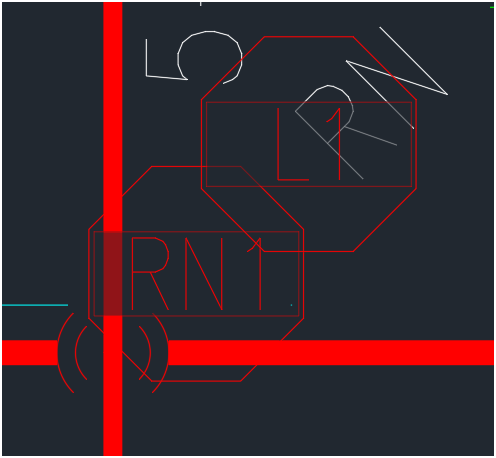
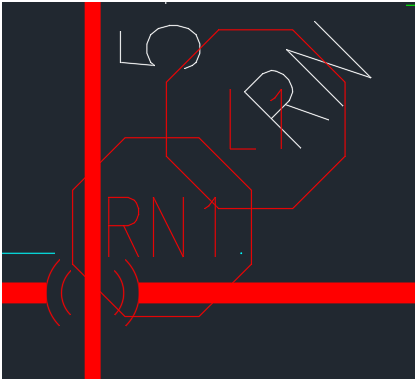
Change the transparency of the wipeout mask from zero to 50%, or remove the wipeout completely.
0% TRANSPARENCY
50% TRANSPARENCY
DELETED WIPEOUT MASK
See solution ==>
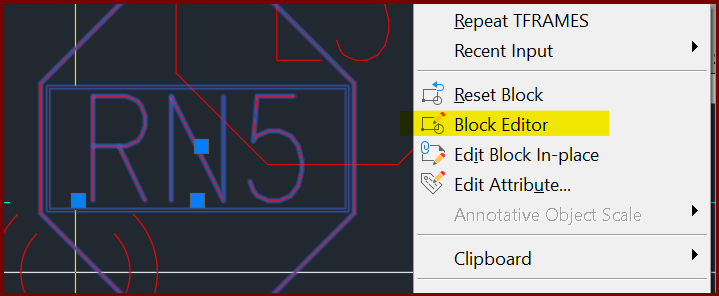
Select the block in question to expose its grips, then right-click it to pull up the menu. Select "Block Editor"
When the block editor opens, if the mask is not visible, click and drag across where you think it may be located. Note the rectangle notated by the red arrow in the 2nd image which wasn't visible in the 1st image.
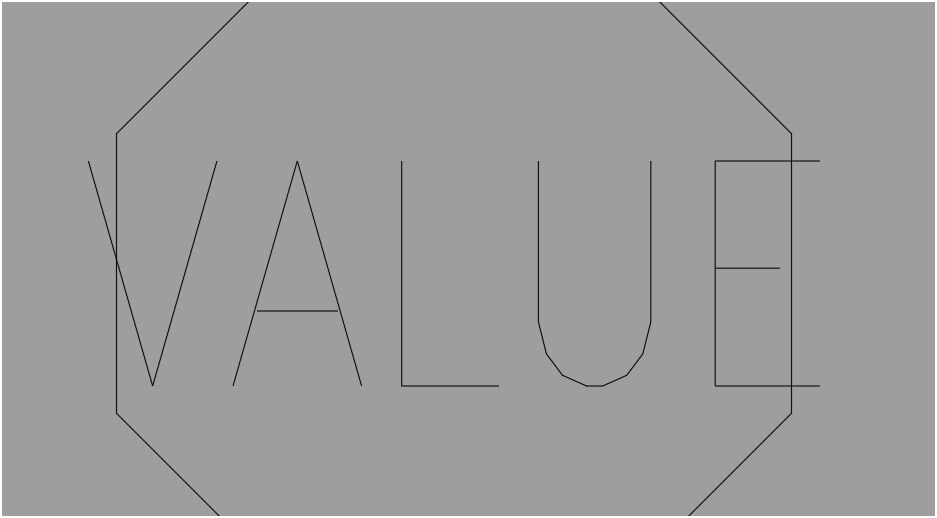
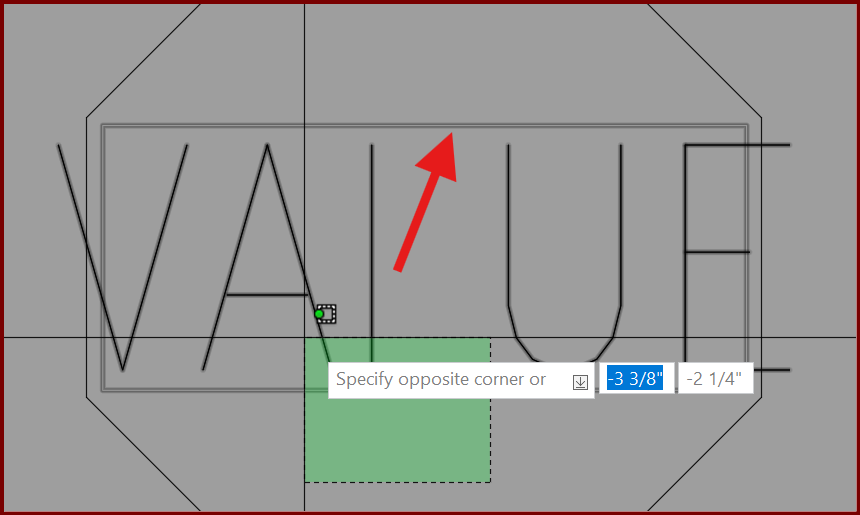
Select only the rectangle to expose its grips, then go to Properties
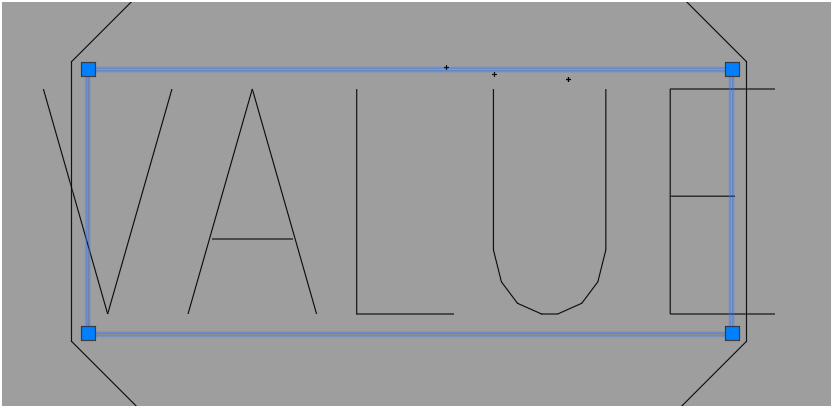
Verify the object selected is a WIPEOUT and note the Transparency property
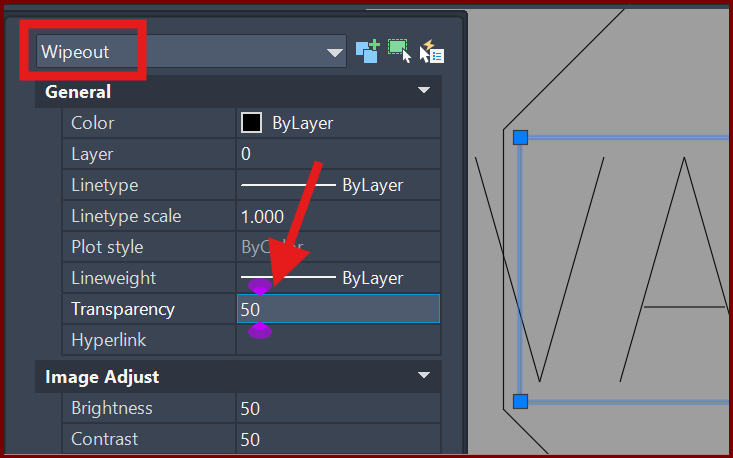
Change the Transparency to a number between 1 and 99. The higher the number, the more transparent.
If you prefer to remove the wipeout, delete the mask by pressing DELETE when you can see its grips
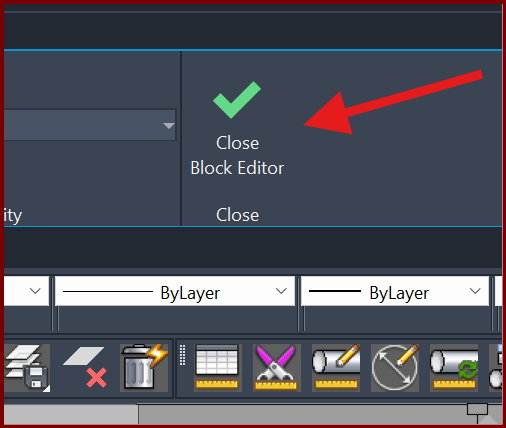
When your alterations are complete, click Close Block Editor from the ribbon at the top.
Confirm you want to save the changes
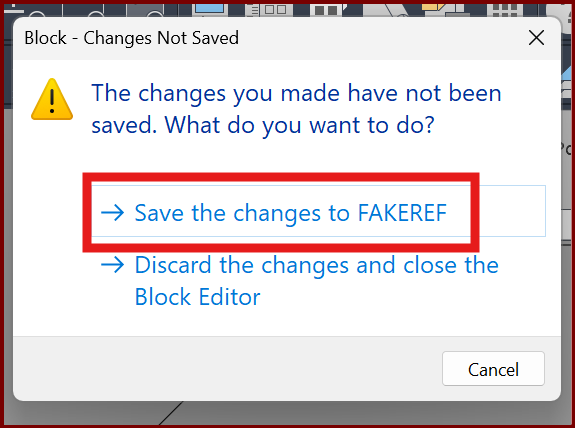
Your drawing will now reflect the new wipeout settings of your block.
NOTE - to prevent this or not deal with wipeouts, when starting a new project, select one of the template drawings which DO NOT indicate a wipeout template.