Need to save a card for later?
Create a bookmark folder in your browser of choice (Chrome, Firefox...), and save individual cards in your bookmarks to view here later.

AutoCAD Based Piping (Ribbon/Toolbar/Location)
Description:
When trying to size a pipe, the units show up as millimetres/millimeters (mm) instead of inches OR the values for half show up as a backslash
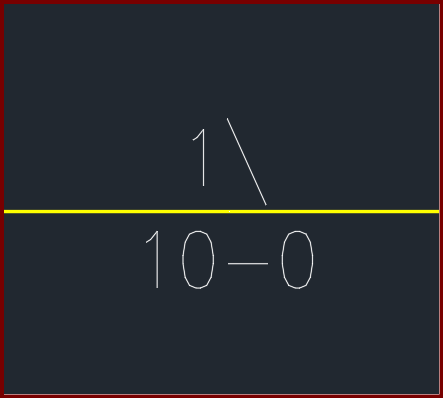
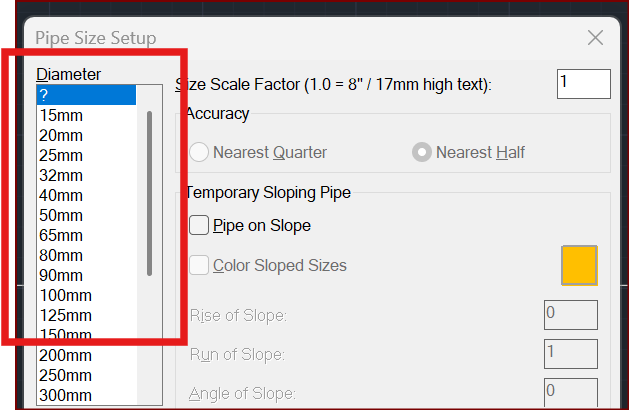
Either your drawing is in the incorrect units or a HydraCAD template was not used, you must be in a HydraCAD environment for these tools to work properly
In order to use the HydraCAD tools, you must start off in a HydraCAD environment.
STARTING A NEW/BLANK DRAWING
1. Click the menu [File|New], select an Imperial template option then click OPEN.
2. Ensure your units are matching in the Drawing Setup window, click OK.
WORKING WITH AN ARCHITECT'S DRAWING
3. Close your architect's drawing and note its location. Follow steps 1 & 2 above.
4. When the blank drawing opens, type CLASSICINSERT <enter>
5. Set your 'on-screen' values as shown below (uncheck all) select 'explode' then click BROWSE, select your architect's drawing.
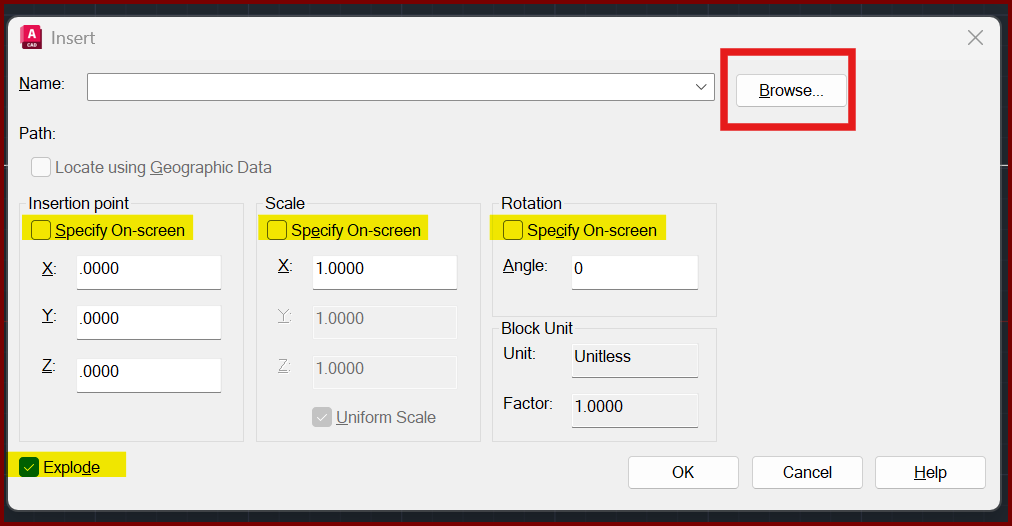
Click OK when done. Save your drawing with a new filename.
Our sizing tools will now work.